Interface
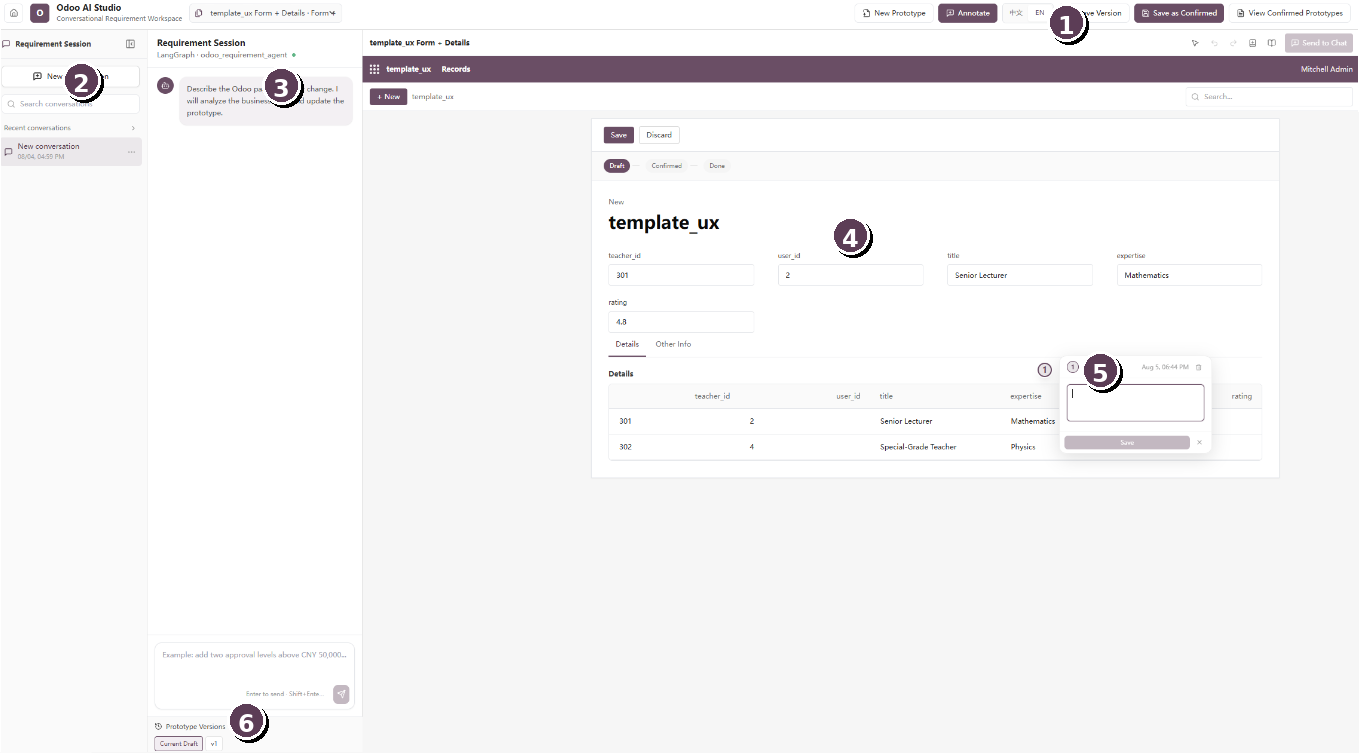
Figure 1. Main Odoo UI Design Kit workspace and functional areas.
| No. | Area | Purpose |
|---|---|---|
| 1 | Prototype command bar | Creates a new prototype, enables annotation mode, changes language, saves versions, confirms the design, and opens confirmed prototypes. |
| 2 | Requirement Session navigation | Creates and searches conversations and lets the user reopen a recent requirement session. |
| 3 | AI requirement chat | Accepts natural-language requests and sends them to the AI agent to update or explain the current prototype. |
| 4 | Prototype canvas | Displays the generated Odoo form, list, tabs, records, buttons, workflow status, and other UI elements. |
| 5 | Annotation card | Stores a requirement linked to a numbered marker placed on the prototype. |
| 6 | Prototype Versions | Shows the current draft and saved revisions for comparison, recovery, and confirmation. |
Top command bar

| Control | Typical use |
|---|---|
| New Prototype | Start a separate prototype or requirement case. |
| Annotate | Enter annotation mode and place requirement markers on the UI. |
| Language selector | Switch the interface or working language where supported. |
| Save Version | Create a recoverable snapshot of the current prototype and requirements. |
| Save as Confirmed | Mark the reviewed state as the approved design baseline. |
| View Confirmed Prototypes | Open previously approved prototypes. |
| Send to Chat | Send selected interface context or annotations to the AI conversation for interpretation or specification generation. |